Amazfit Helio Ring Troubleshooting
The Amazfit Helio Smart Ring promises a seamless, discreet way to track your health and fitness. When it works flawlessly, it’s a fantastic piece of technology. However, like any sophisticated gadget, users can encounter hiccups. This article delves into the most common Amazfit Helio Ring troubleshooting problems and provides practical, actionable solutions, ensuring you get the most out of your smart ring.
Why Trust This Guide? This guide is based on extensive user feedback, official Amazfit documentation, and general best practices for smart wearables. Our goal is to empower you with the knowledge to troubleshoot effectively and enhance your Amazfit Helio Ring experience.
Understanding Your Amazfit Helio Ring
Before diving into Amazfit Helio Ring Troubleshooting solutions, let’s briefly recap what makes the Helio Ring unique. It’s designed for continuous wear, tracking metrics like heart rate, sleep stages, blood oxygen, and activity levels. Its lightweight, screenless design prioritizes comfort and discretion.
Key Features:
- 24/7 Health Monitoring
- Sleep Tracking
- Stress Monitoring
- Activity Tracking
- Water Resistance
- Long Battery Life (advertised)
Common Amazfit Helio Ring Problems and Solutions
Here’s a breakdown of the most frequently reported issues and how to tackle them.
1. Connectivity Issues (Bluetooth Pairing & Disconnections)
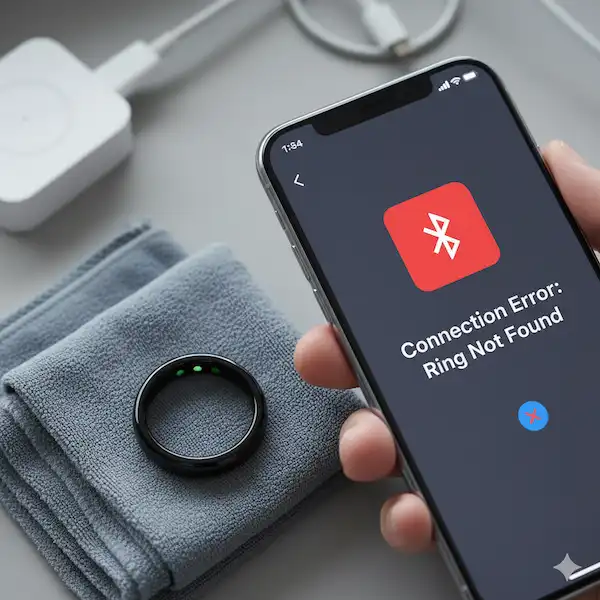
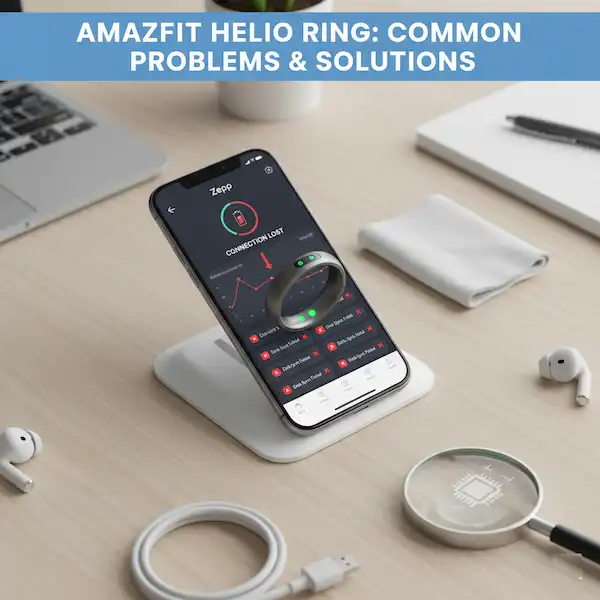
This is perhaps the most common frustration for any smart device user. If your Helio Ring isn’t connecting to your phone or frequently disconnects, try these steps.
Problem Examples:
- Ring not showing up in the Zepp app’s device list.
- “Connection lost” notifications.
- Data not syncing from the ring to the app.
Troubleshooting Chart: Bluetooth Connectivity
| Step | Action | Explanation |
| 1. Basic Checks | Ensure Bluetooth is ON on your phone. Keep ring close to phone. | Obvious but often overlooked! Reduce interference. |
| 2. Restart Devices | Restart both your smartphone and the Amazfit Helio Ring (if applicable). | Clears temporary software glitches. For the ring, place it on its charger to power cycle. |
| 3. Re-pair the Ring | In your phone’s Bluetooth settings, “forget” or “unpair” the ring. Then, try pairing again via the Zepp app. | A fresh connection often resolves persistent issues. |
| 4. Zepp App Permissions | Check that the Zepp app has all necessary permissions (Location, Bluetooth, Notifications). | Location services are crucial for Bluetooth scanning on Android. |
| 5. Update Zepp App & Ring Firmware | Ensure both the Zepp app and your ring’s firmware are up to date. | Updates often include bug fixes for connectivity and performance. |
| 6. Clear Zepp App Cache | (Android) Go to App Info > Storage > Clear Cache. (iOS) Reinstall the app. | Corrupted cache data can interfere with app functionality. |
Pro Tip: Interference from other Bluetooth devices or Wi-Fi networks can sometimes affect connectivity. Try troubleshooting in a different location.
2. Inaccurate or Missing Data (Heart Rate, Sleep, Steps)
The core function of a smart ring is data collection. When this data is inconsistent or absent, it defeats the purpose.
Problem Examples:
- Heart rate readings seem too high/low or are missing entirely.
- Sleep tracking shows awake periods during deep sleep, or misses sleep altogether.
- Step count is significantly off compared to actual activity.
- Blood oxygen readings are frequently failing.
Solutions:
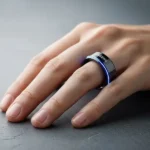
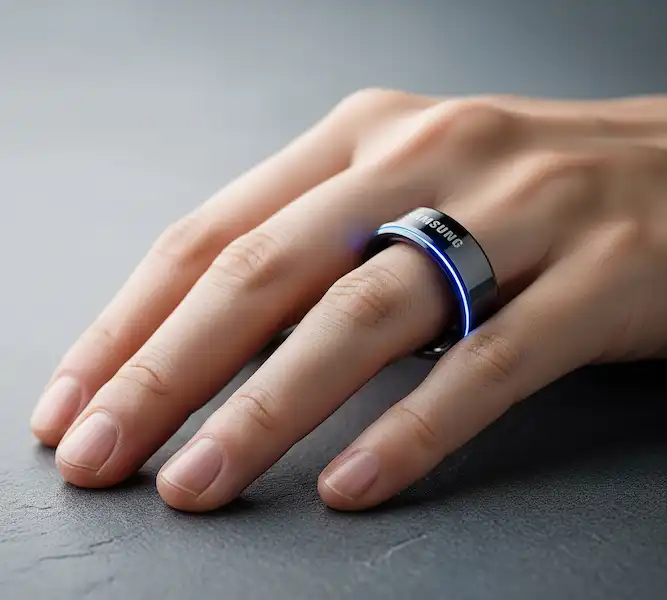
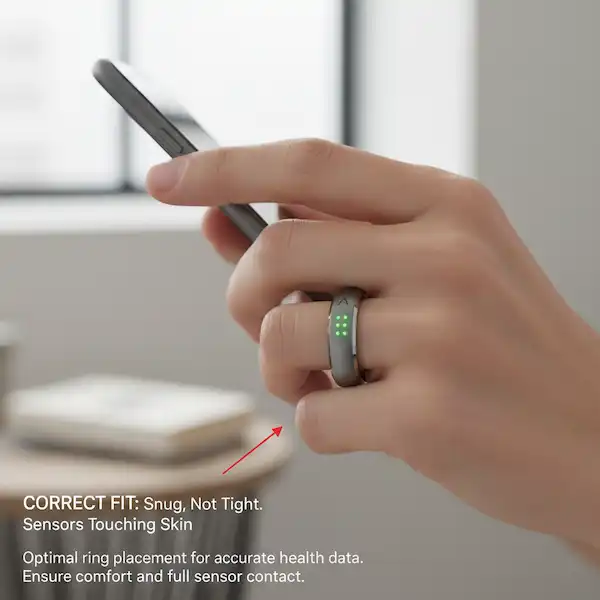
- Ring Fit: This is paramount. The Helio Ring needs to sit snugly on your finger to get accurate readings. It shouldn’t be too tight (cutting off circulation) or too loose (allowing movement that interferes with sensors). Experiment with different fingers or even different hands.
- *Visual Example: A hand with the Amazfit Helio Ring correctly worn – not too loose, not too tight.
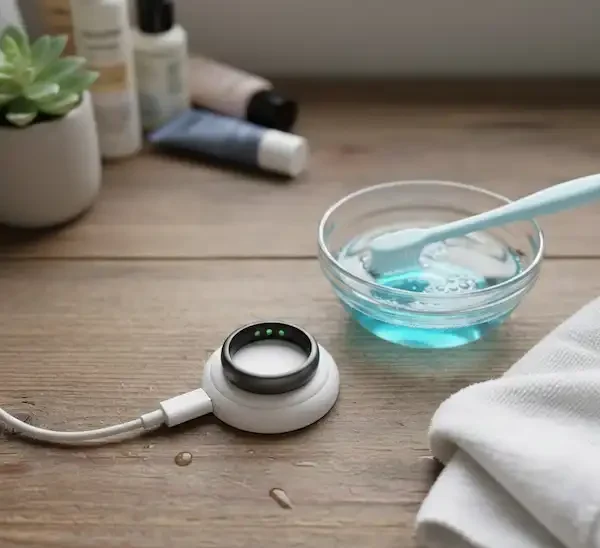
- Clean Sensors: Dirt, sweat, and lotion can block the optical sensors. Regularly clean the inside of your ring with a soft, damp, lint-free cloth.
- Sensor Placement: Ensure the sensors are making good contact with your skin, ideally on the underside of your finger.
- Firmware Updates: Always keep your ring’s firmware updated, as these often include improvements to sensor algorithms and accuracy.
- Activity Type: For step counting, remember that ring-based trackers can sometimes be less accurate during specific activities (e.g., cycling where your hand isn’t moving as much).
- Patience with Sleep Data: Sleep algorithms require consistent wear and can take a few nights to calibrate. Ensure you’re wearing the ring throughout the entire sleep period.
3. Battery Drain Issues
A smart ring’s battery life is a major selling point. If your Helio Ring isn’t lasting as long as advertised, investigate these factors.
Problem Examples:
- Battery depleting much faster than the stated “up to X days.”
- Ring dying unexpectedly.
- Slow charging.
Solutions:
- Charging Best Practices:
- Use the official charging cable and dock.
- Ensure the charging contacts on both the ring and the dock are clean.
- Verify the ring is correctly seated on the charger and the charging indicator (if any) is active.
- Firmware Updates: Battery optimizations are frequently part of firmware updates.
- App Activity: While the ring primarily operates independently, constant syncing attempts due to poor connectivity can indirectly affect battery life. Resolve connectivity issues first.
- Environmental Factors: Extreme temperatures can affect battery performance. Avoid leaving your ring in direct sunlight or very cold environments.
- New Device Calibration: Sometimes, new batteries need a few charge/discharge cycles to reach optimal performance.
4. Zepp App Issues (Syncing, Crashes, Notifications)
The Zepp app is your gateway to your Helio Ring’s data. If the app itself is misbehaving, it impacts your overall experience.
Problem Examples:
- Zepp app crashing frequently.
- Data not appearing in the app after syncing.
- Notifications from the ring (e.g., inactivity alerts) not working.
Solutions:
- Update Zepp App: Ensure you have the latest version from your app store.
- Clear Cache/Reinstall:
- Android: Go to your phone’s Settings > Apps > Zepp > Storage > Clear Cache and Clear Data (be aware clearing data will log you out).
- iOS: Delete the app and reinstall it from the App Store. This often resolves persistent glitches.
- Background App Refresh (iOS) / Battery Optimization (Android):
- iOS: Ensure “Background App Refresh” is enabled for the Zepp app (Settings > General > Background App Refresh).
- Android: Go to your phone’s Settings > Apps > Zepp > Battery and ensure it’s not restricted or optimized in a way that prevents it from running in the background.
- Permissions: Double-check that the Zepp app has all necessary permissions (Location, Bluetooth, Storage, Notifications).
- Server Issues: Occasionally, Amazfit’s servers might experience temporary outages, affecting data sync. Check official Amazfit social media or support channels for any reported issues.
Additional Helpful Content & Tips
- Proper Sizing: The Amazfit Helio Ring’s accuracy heavily relies on a good fit. If you ordered online, use their sizing guide carefully. A local jeweler might also be able to help measure your finger accurately.
- Skin Irritation: If you experience skin irritation, ensure the ring is clean. Some individuals have sensitivities to certain materials. Try wearing it on a different finger or hand. If irritation persists, consult a dermatologist.
- Water Resistance: The Helio Ring is water-resistant. However, prolonged exposure to harsh chemicals (e.g., strong soaps, chlorine) can degrade seals over time. Rinse your ring with fresh water after swimming and dry it thoroughly.
- Regular Firmware Updates: Always install firmware updates for your ring. They often bring bug fixes, performance improvements, and new features.
Amazfit Helio Ring FAQ
Q: How do I restart my Amazfit Helio Ring? A: Unlike a smartwatch, the Helio Ring doesn’t have a physical button to restart. The most common way to “power cycle” it is to place it on its charging dock. This usually forces a soft reset.
Q: My ring isn’t detected by the Zepp app. What should I do? A: First, ensure Bluetooth is on and the ring is charged. Try restarting your phone and the Zepp app. If it still doesn’t appear, try “forgetting” the ring in your phone’s Bluetooth settings (if it was previously paired) and initiate the pairing process again within the Zepp app.
Q: Is it okay to wear the Amazfit Helio Ring in the shower or while swimming? A: Yes, the Amazfit Helio Ring is water-resistant. However, it’s generally good practice to rinse it with fresh water after swimming in chlorinated or saltwater and dry it thoroughly. Avoid exposing it to hot water for extended periods.
Q: Why are my sleep tracking results inconsistent? A: Ensure your ring fits snugly and comfortably. Sleep tracking algorithms can also take a few nights to learn your patterns. Make sure the Zepp app and ring firmware are updated, as these often contain improvements to sleep analysis.
Q: My battery life is much shorter than advertised. What gives? A: Verify you’re using the original charger. Ensure good contact between the ring and the charging pins. Check for firmware updates, as these often include battery optimizations. High usage of certain features (though less configurable on a ring) or poor connectivity constantly trying to re-establish connection can also impact battery life.
Additional Helpful Links
- Learn more about Oura Ring problems and solutions – Oura Ring Problems and Solutions: Ultimate Troubleshooting
External Links & Authoritative Sources
For further information and direct support, please refer to these official and authoritative sources:
- Amazfit Official Website: https://www.amazfit.com/
- Bluetooth SIG (Special Interest Group): (For general Bluetooth information and standards) https://www.bluetooth.com/
By following this comprehensive troubleshooting guide, you should be able to resolve most common issues with your Amazfit Helio Smart Ring and get back to enjoying seamless health and fitness tracking.