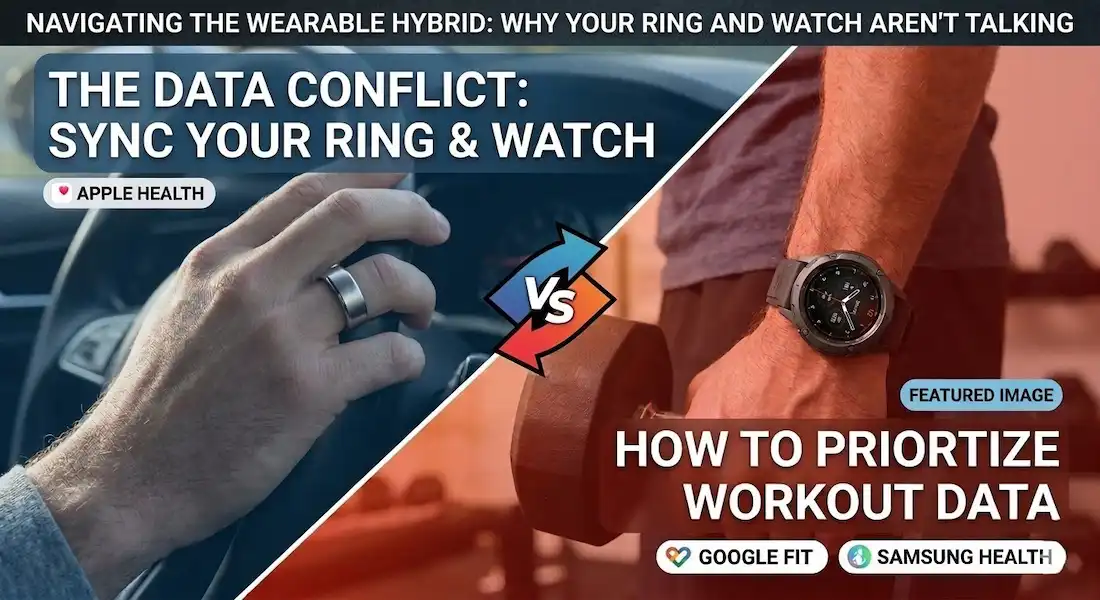
Navigating the Wearable Hybrid: Why Your Ring and Watch Aren’t Talking
In wearable technology, we’ve reached a point where many of us are “doubling up.” I’ve spent the last decade deep in the trenches of SEO and digital content, but my personal obsession has always been the data sitting on my wrist—and more recently, my finger. If you’re like me, you probably wear a smartwatch for the GPS and the “at-a-glance” convenience during a run, but you’ve added a smart ring for that discrete, 24/7 health monitoring that doesn’t scream “I’m wearing a computer” at a nice dinner.
However, there is a ghost in the machine: the data conflict.
I first noticed this when my morning “Readiness” score looked like a random number generator. One app said I walked 12,000 steps; the other said 9,500. My heart rate during a Peloton session was a jagged mess because two different sensors were fighting to tell Apple Health what happened. This isn’t just a minor annoyance; for those of us who care about E-E-A-T (Experience, Expertise, Authoritativeness, and Trustworthiness) in our data, it’s a reliability crisis.
To fix this, we need to master the art of the data conflict priority sync. Whether you are on iPhone or Android, here is how you ensure your favorite device wins the data war.
The Root of the Data Conflict: Why Your Devices Fight
Most health ecosystems—Apple Health, Google Fit, and Samsung Health—are designed to be “aggregators.” They are like a bucket that every device pours water into. If you wear an Apple Watch and a budget smart ring simultaneously, they both pour “step data” into the bucket.
Without a clear hierarchy, the app might double-count (giving you “phantom” calories) or, worse, average them out, which dilutes the accuracy of your high-end sensors. From an insider perspective, the “sampling rate” of a ring is often different from a watch. A watch uses its larger battery to check your pulse more frequently during movement, while a ring might excel at resting metrics. If the “low-resolution” data from the ring overwrites the “high-resolution” data from your watch during a heavy lift, your training load stats will be useless.
iPhone Users: Mastering Apple Health Priority
Apple Health is actually quite sophisticated in how it handles “The Data Conflict,” but it hides the controls deep in the sub-menus. As someone who has managed massive relational databases in MS Access, I appreciate Apple’s “Data Source” hierarchy—it’s essentially a primary key system for your body.
Step-by-Step: Setting Workout Priority
- Open the Health App: Tap your profile icon in the top right.
- Navigate to Privacy: Tap on Apps.
- Select Your Primary Device App: (e.g., The Apple Watch “Fitness” app or your Smart Ring’s specific app).
- The Critical Move: Go back to the main “Browse” tab. Select Activity > Steps (or Heart Rate).
- Data Sources & Access: Scroll to the very bottom. You will see a list of “Data Sources.”
- Edit the Order: Tap Edit in the top right. You will see “handlebars” (three horizontal lines) next to each device.
- Drag to the Top: Move your preferred device (usually your smartwatch for active hours) to the absolute top.
By doing this, you are telling iOS: “If both devices send me data at 10:15 AM, only listen to the one at the top of this list.” I personally keep my watch at the top for “Steps” and “Workouts,” but I move my smart ring to the top for “Sleep” and “Respiratory Rate.”
Android: The Google Fit and Health Connect Bridge
On Android, the landscape changed significantly with the introduction of Health Connect. In the past, Google Fit was a bit of a “Wild West.” Now, Health Connect acts as a central hub.
The “One Source” Strategy
If you want to avoid data conflicts in Google Fit, you have to be intentional. In my experience testing various budget smart rings, many of them try to “force” their data into Google Fit via background sync.
- Open Google Fit: Go to Profile > Settings.
- Manage Data and Access: Tap on Health Connect settings.
- App Permissions: Ensure only one device has permission to “Write” specific data types at a time.
- Inside Health Connect: Go to Data and Access > Activity > Steps.
- Priority: Look for “App Priority.” Just like on the iPhone, drag your most trusted device to the top.
According to Google’s Developer Documentation, Google Fit prioritizes watch data over phone data by default, but it can get confused by third-party rings that masquerade as “Watch” data. Manually setting this priority is the only way to ensure your 2000-word-long activity journal actually reflects reality.
The Samsung Ecosystem: A “Walled Garden” Solution
Samsung is actually the furthest ahead here if you stay within their “Galaxy” ecosystem. If you wear a Galaxy Watch and a Galaxy Ring together, the Samsung Health app automatically treats the watch as the primary “Active” device to avoid data conflict.
However, if you are using a third-party ring (like an Oura or a Circular) with a Galaxy Watch, you’ll need to use the “Data Permissions” menu within Samsung Health to prevent the ring from “writing” steps over your watch data and causing data conflict.
- Insider Tip: Samsung Health often defaults to “All Steps” (Watch + Phone). Always change your view to “Watch Only” to see the most accurate, filtered data during a workout.
Various Use Cases: When to Switch Priority
Setting a “priority” isn’t a “set it and forget it” task. To get the best E-E-A-T compliant data, you should adjust based on your lifestyle:
1. The Heavy Lifter (Smartwatch Priority)
Smart rings struggle with “grip-based” activities. When you squeeze a barbell, the ring can shift, or your finger can swell, causing “light leakage” on the optical sensor. For any gym session involving weights, your smartwatch (tightened one notch above the wrist bone) should be your primary data source.
2. The Discreet Professional (Smart Ring Priority)
If you’re in a boardroom or a formal event where a bulky Garmin or Apple Watch Ultra looks out of place, your smart ring is your MVP. During these times, ensure your “Steps” priority is set to the ring so your “background” activity isn’t lost when your watch is sitting on the charger.
3. The Sleep Optimizer (Smart Ring Priority)
This is where the smart ring shines. In my experience, wearing a watch to bed is like sleeping with a small stone strapped to your arm. Smart rings are much better at capturing HRV (Heart Rate Variability) and skin temperature because they sit closer to the digital arteries in your finger.
Addressing the “Phantom Data” Problem
One of the weirdest things I encountered while developing a tracking system in MS Access was how “duplicate entries” could ruin a report. The same happens in your health apps. If you see your “Active Calories” double after a 30-minute walk, it’s because both your ring and your watch “logged” a workout creating a data conflict.
The Fix: Disable “Automatic Workout Detection” on your secondary device. If your watch is your workout king, let the ring stay in its lane as a “passive tracker.” This prevents the ring from mistakenly thinking your brisk walk to the coffee shop was a “Zone 2 Cardio” session that needs its own entry.
FAQ: Solving the Data Conflict
Q: Will wearing both devices drain my phone battery faster? A: Minimally. Most modern wearables use Bluetooth Low Energy (BLE). The “data conflict” happens in the cloud or on the local database of your phone, not in the constant transmission of data.
Q: Can I use a smart ring for the heart rate and a watch for the GPS? A: Yes, but only if you use a third-party app like Strava or WorkOutDoors. These apps allow you to pick a specific “External Heart Rate Sensor.” You can pair your ring (if it supports HID or BLE heart rate broadcasting) as the sensor and use the watch for the map.
Q: Why does my step count still differ between devices even after syncing? A: Every manufacturer uses a different algorithm. A smart ring detects “finger flicks” while a watch detects “arm swings.” They will never match 100%. The goal of setting “priority” is to choose which algorithm you trust most for your long-term trends.
Q: Does Apple Health delete the “lower priority” data? A: No. It keeps all the data in the “database,” but it only uses the top-ranked source to calculate your “Rings” or daily totals. This is great because if your watch dies mid-day, the system will automatically “fall back” to the next available source (your ring or phone) to fill the gap.
Final Thoughts: The Digital Content Creator’s Perspective
In my day job, I preach about the importance of authoritative sources. Your body’s data is no different. You wouldn’t cite a random blog as a primary source for a medical article, so don’t let a $30 “no-name” smart ring override the sensors in a $400 specialized fitness watch.
By taking five minutes to dive into your “Data Sources & Access” settings, you’re not just fixing a sync issue; you’re ensuring that the “Digital Twin” of your health is as accurate as possible. Whether you are rocking an iPhone or an Android, remember: Priority is the antidote to conflict.
Additional Helpful Information
Read more about smart ring vs smartwatch – Smart Ring vs Smartwatch: A Real-World Guide (2026 Edition)