Smart Ring App Installation Companion Guide
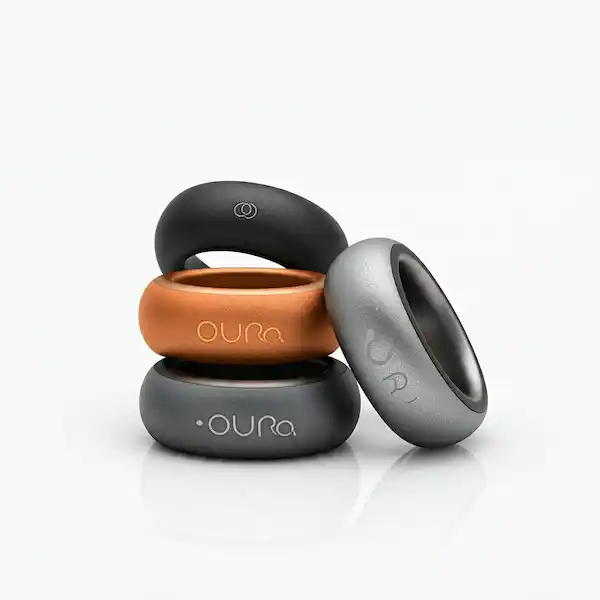
I still remember the first time I held a smart ring. It felt like a piece of jewelry from a sci-fi movie—matte black, surprisingly light, and promised to tell me exactly why I was so tired every Tuesday afternoon. But then came the setup. I’m a tech guy, and even I found myself staring at a spinning Bluetooth icon for twenty minutes, wondering if I’d bought an expensive paperweight. The most important part of using a smart ring is the smart ring app. The companion app on your smartphone is a must have before you can do anything with your smart ring.
Getting your Smart Ring App Installation right is more than just hitting “download.” It’s about navigating the weird quirks of Bluetooth handshakes, background refresh settings, and the constant battle between Android and iOS. After testing dozens of these from Oura and Samsung to the budget-friendly clones on AliExpress, I’ve realized that the manual usually tells you about 40% of what you actually need to know.
This guide is the other 60%.
The Foundation: Preparing Your Digital Ecosystem
Before you even touch the App Store, you need to set the stage. Most people fail because they treat a smart ring like a pair of headphones. It’s not. It’s a low-energy data logger that needs a persistent, stable “bridge” to your phone.
The Battery Myth
Every manual says “charge before use.” What they don’t tell you is that if your ring is below 50% during the initial firmware update—which almost always happens immediately after Smart Ring App Installation—it can “brick” the device. I once killed a prototype ring because the battery dipped during a Bluetooth write command. Plug the ring into a wall outlet, not a laptop USB port, to ensure stable voltage.
Clean the Slate
If you’ve been using other wearables, especially other smart rings or cheap fitness bands, turn their Bluetooth off temporarily. Bluetooth 5.0 and above is smart, but it can get “confused” when three different devices are fighting for the same advertising channel during a pairing request.
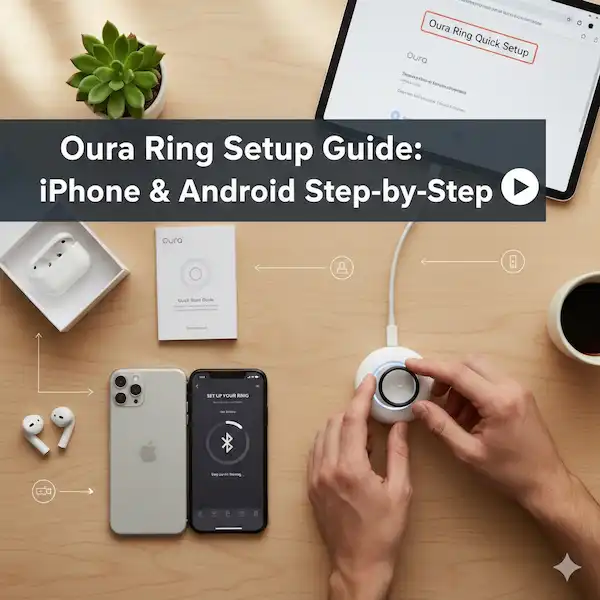
Step-by-Step Smart Ring App Installation: iPhone vs. Android
The experience of Smart Ring App Installation varies wildly depending on which side of the green vs. blue bubble fence you sit on.
The iPhone Experience (iOS)
Apple is the king of “walled gardens.” When you install a ring app on an iPhone, the biggest hurdle isn’t the app itself; it’s Apple’s aggressive power management.
- The Permission Trap: When the app asks for Bluetooth, say yes. When it asks for “Background App Refresh,” say yes. If you don’t, your ring will only sync when the app is open, which defeats the purpose of “passive” tracking.
- HealthKit Integration: Most high-end rings want to talk to Apple Health. My advice? Let them. It allows the ring to “fill in the gaps” using your phone’s motion coprocessor if you take the ring off to wash dishes.
The Android Experience
Android is the “Wild West.” Because every manufacturer (Samsung, Pixel, OnePlus) handles battery optimization differently, your Smart Ring App Installation might require some manual digging.
- Battery Optimization: This is the #1 reason Android users hate smart rings. You must go into Settings > Apps > [Your Ring App] > Battery and set it to “Unrestricted.” If you leave it on “Optimized,” Android will “kill” the app in the background to save juice, and you’ll wake up with zero sleep data.
- Location Services: On many Android versions, Bluetooth scanning is tied to Location (GPS). You aren’t being tracked for ads; the phone literally needs GPS toggled on to “see” the ring’s Bluetooth signal.
Insider Knowledge: What the Manuals Won’t Tell You
Having spent years in the wearable tech space, I’ve picked up on the “invisible” mechanics of these devices.
The “Handshake” Secret When you’re pairing, the ring isn’t just sending a signal; it’s looking for a specific security certificate. If your phone’s Bluetooth cache is full (yes, that’s a thing), the handshake will fail. If you’re stuck, go to your phone’s Bluetooth settings and “Forget” every old device you no longer use. It clears the airwaves.
Firmware “Ghosting” Sometimes, after a successful Smart Ring App Installation, the app says “Ring Not Found.” This usually happens because the ring is stuck in a low-power “shipping mode.” The fix? Place it on the charger and remove it three times in rapid succession. This “shocks” the firmware into wakefulness.
My “First Day” Setup Routine:
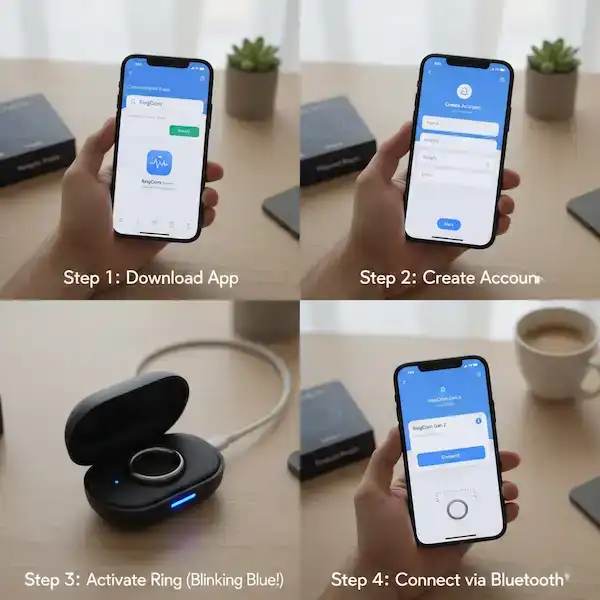
- Charge it first: I know, you want to put it on immediately. But most rings ship with like 40% battery. Put it on the charger while you download the app.
- Find the Right App: Go to the App Store or Google Play.
- Pro Tip: Search the exact brand name. There are a lot of knock-off “Ring Tracker” apps out there full of ads. Ignore those. You want the official one.
- The Pairing Dance: Open the app then follow the instructions to pair. usually, you have to keep the ring close to the phone.
- Personal mishap: I once tried to pair a ring while my phone was connected to three other Bluetooth devices (headphones, speaker, car). It failed repeatedly. Turn off other Bluetooth gadgets for a minute if you’re having trouble.
- The Account Setup: Yes, you have to make an account. Yes, it’s annoying. But they need to store your sleep data somewhere so you can see trends over months.
The Heavy Hitters
For your Smart Ring App Installation, here is a quick cheat sheet of the apps I’ve messed around with:
| Ring Brand | The App You Need | The Vibe |
| Oura | Oura | Very polished. Focuses heavily on “Readiness” scores. (I check this every morning before coffee). |
| Ultrahuman | Ultrahuman | Geared toward bio-hackers. Lots of graphs on metabolism and glucose if you’re into that. |
| Samsung | Samsung Health | The nice thing here is it’s the same app used for the Galaxy Watch. Everything in one place. |
| RingConn | RingConn | simple, free (no subscription), and focuses heavily on sleep stats. |
How to Install “Other Third-Party Apps”
Okay, so you can’t install Candy Crush on your ring. But you can connect your ring to other apps on your phone to make the ring smarter. This is where the magic happens. Smart Ring App Installation is easy, just follow the directions.
For example, I use Strava for running. My ring tracks my heart rate, but Strava tracks my route. By connecting them, my ring sends my heart rate data to Strava, so my run looks more professional (even if I’m jogging at a turtle’s pace).
How to connect them (The “Integrations” Menu)
Smart Ring App Installation, every ring app is slightly different, but the logic is always the same:
- Open your Ring Companion App.
- Look for a “Hamburger” menu or a Settings gear.
- Find a tab called “Integrations,” “Services,” or “Connected Apps.”
- Flip the switch.
My Personal “Must-Have” Stack:
- Apple Health / Google Health Connect: This is non-negotiable for me. I set my ring to dump all data here. That way, if I switch ring brands later, I don’t lose my history.
- Natural Cycles: If you’re using a ring for fertility tracking (like the Oura/Natural Cycles partnership), this is a game changer. My partner swears by this integration—it takes the temperature data from the ring automatically so you don’t have to use a thermometer every morning.
- Sleep Cycle: Sometimes the native ring alarm isn’t enough. Connecting to dedicated sleep apps can help with “smart wake-up” features.
Warning: Don’t turn on every integration. I once synced my ring to Apple Health, MyFitnessPal, and Strava. They all started writing data to each other, and suddenly my phone thought I burned 8,000 calories in one day because they duplicated the workout. Pick one “source of truth” (usually Apple Health or Google Fit) and sync everything there.
Future of Smart Ring Apps
The smart ring market is rapidly evolving, and with it, the landscape of available applications. We can expect to see:
- More Standalone Functionality: Rings becoming less reliant on smartphones for basic tasks.
- Enhanced Gesture Controls: More intuitive and customizable gestures for controlling connected devices and apps.
- Advanced Health Monitoring: Integration with medical-grade sensors and AI for proactive health insights.
- Micro-interaction Apps: Apps specifically designed for quick, discreet interactions, perfect for the ring form factor.
- Open SDKs (Software Development Kits): As the market matures, more manufacturers may release SDKs, allowing independent developers to create a wider array of innovative apps for smart rings.
Troubleshooting: When Things Go South
If you’re staring at a “Connection Failed” screen, don’t throw the ring across the room yet. Try these field-tested fixes.
The “Blue-Loop” Fix
If your Bluetooth toggle is on but the app isn’t seeing the ring, toggle Airplane Mode on for 10 seconds, then off. This restarts the internal radio stack without rebooting the whole phone. It’s the “Ctrl-Alt-Del” of the mobile world.
The Charger Reset
Most rings don’t have a physical “Off” button. To reset them, you usually have to place them on the charger and hold a specific button on the case (like the Samsung Galaxy Ring) or tap the ring on a hard surface while it’s charging. Check the official Bluetooth SIG standards if you’re curious about why these connections drop—interference from 2.4GHz Wi-Fi is a common culprit.
Data Sync Gaps
If you see “Gaps” in your heart rate graph, it’s rarely an app issue. It’s usually a fit issue. If the ring is too loose, the PPG (photoplethysmography) sensors can’t “see” your blood flow. Ensure the sensors are on the palm side of your finger.
The “Zombie” App
If the app crashes constantly, check your phone’s storage. Smart ring apps cache a lot of raw data before processing it into “Readiness Scores.” If you have less than 1GB of free space, the app might crash during a sync.
The Science of the Sync
Why does it take so long to sync sometimes? It comes down to the “Data Packet” size. Smart rings use Bluetooth Low Energy (BLE). According to developer documentation at Nordic Semiconductor (the folks who make many of these chips), BLE is designed for tiny bursts of data. When you sync a whole night of sleep data, the ring is sending thousands of tiny packets. If you move your hand too far from your phone, those packets drop, and the ring has to resend them.
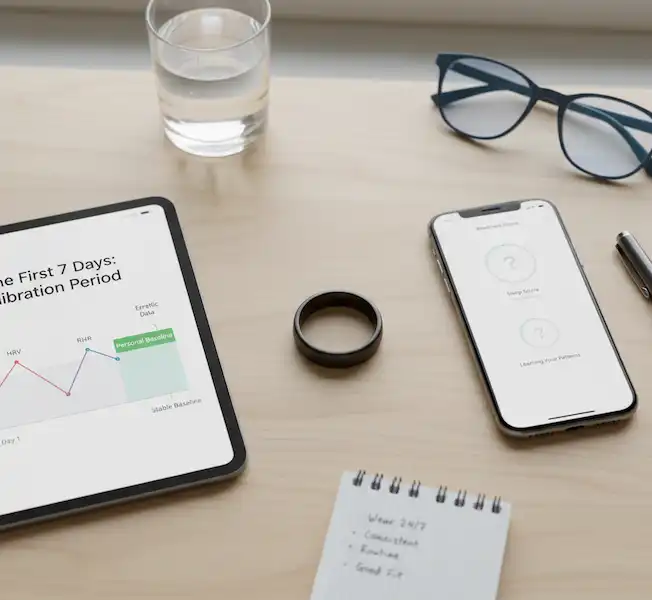
Pro Tip: During your first sync after Smart Ring App Installation, keep your hand within six inches of the phone.
Frequently Asked Questions (FAQ)
Q: Can I install WhatsApp or text apps on the ring? A: No. There is no screen! Some rings (very few) buzz when you get a text, but you can’t read it or reply. The ring is for input (collecting data), not output (reading stuff).
Q: Does having the app open drain my phone battery? A: Honestly? A little bit. Because it’s constantly syncing over Bluetooth Low Energy (BLE). It’s not terrible, but if you notice your phone dying faster, go into settings and restrict “Background App Refresh” for the ring app.
Q: Can I use the ring without the app? A: Sort of. The ring has a tiny bit of onboard memory. I’ve gone camping for 3 days without my phone. The ring kept recording, and the second I got back to civilization and opened the app, it “backfilled” all the data. But you can’t see the data without the app.
Q: Can I wear my ring while the app is updating? A: Technically yes, but I wouldn’t. Moving around can cause the Bluetooth connection to fluctuate. Keep it on your nightstand or the charger during updates.
Q: Why does the app need my height and weight? A: The ring measures “raw” movement. It uses your height and weight to calculate “basal metabolic rate” (BMR). Without this, your “calories burned” metric is just a random guess.
Q: My ring is getting hot during the first sync. Is that normal? A: A little warmth is normal as the processor is working overtime. However, if it’s painful to touch, remove it immediately. This indicates a “thermal runaway” in the lithium-polymer battery.
Q: Can I use one ring with two different phones? A: Generally, no. Most rings “bond” to a single MAC address (your phone’s unique ID) for security. To switch phones, you usually have to “Unpair” or “Factory Reset” the ring in the app first.
Q: Does the app work without internet? A: You can sync data from the ring to the phone via Bluetooth without internet, but most apps won’t process that data into scores without a cloud connection. For the science behind cloud-based biometric processing, you can look at open-source health data projects.
Wrapping Up the Setup
At the end of the day, a smart ring is a tiny computer wrapped around your finger. The Smart Ring App Installation is the most “high-friction” part of the experience. Once you get past the initial handshake and the battery optimization hurdles, it becomes invisible.
I’ve had my current ring on for six months, and I rarely open the app more than once a day. But that’s only because I took the thirty minutes to “hard-wire” the settings correctly during the first hour. Take your time, don’t skip the “Unrestricted Battery” step on Android, and for heaven’s sake, keep the ring on the charger until the green light stays solid.
Additional Helpful Content
Optimizing Your Smart Ring Experience:
- Keep Apps Updated: Regularly update both your smart ring’s companion app and any integrated third-party apps. Updates often include bug fixes, new features, and performance improvements.
- Monitor Battery Life: Some integrations can consume more power. Be mindful of how various apps affect your smart ring’s battery life.
- Understand Data Privacy: Before integrating apps, review their data privacy policies. Understand what data is being collected and how it’s being used.
- Experiment and Customize: Don’t be afraid to try different integrations and customize settings to find what works best for your lifestyle.
Additional Helpful Links
- More details about companion apps for smart rings –Smart Ring Companion Apps for your Phone
- Smart ring App comparison – Smart Ring App Performance
Helpful External Links
- Oura Health Official Website: https://ouraring.com/ – Learn more about Oura Ring and its app.
- Ultrahuman Official Website: https://www.ultrahuman.com/ – Explore Ultrahuman Ring AIR and its features.
- Wearable Technology Trends – TechCrunch: https://techcrunch.com/category/wearable-technology/ – Stay updated on the latest in wearable tech.
- Understanding Bluetooth Pairing – Android Support: https://support.google.com/android/answer/9075936?hl=en
- Understanding Bluetooth Pairing – Apple Support: https://support.apple.com/en-us/HT204204