Living with the Big Three Smart Rings
Getting a smart ring isn’t just about buying a piece of jewelry; it’s about choosing a new digital roommate that’s going to watch you sleep, judge your morning coffee habits, and tell you when to take it easy. This Smart ring setup comparison will guide you to which ring is right for you.
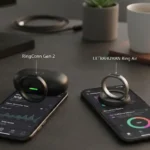
I’ve spent the last several months swapping between the Oura Ring 4, the Ultrahuman Ring Air, and the RingConn Gen 2. If you’re like me, you probably care less about the raw technical specs and more about whether the setup is a headache and if the app is actually fun to use.
Here’s my honest take on how these three heavy hitters stack up when it comes to the smart ring setup phase and the daily scroll.
The Setup Sprint: From Box to Finger
When these rings arrive, the excitement is real. But nothing kills the vibe faster than a three-hour software update or a Bluetooth pairing loop. Take a look at this Smart Ring Setup Comparison.
1. Oura Ring 4: The Polished Professional
Oura has been doing this the longest, and it shows. The unboxing feels like opening a high-end watch.
- The Process: You plug in the charger (which is size-specific), drop the ring on, and wait for the little blue light to pulse.1
- Time to Pairing: Under 2 minutes. The app found the ring immediately.
- Personal Experience: I love that Oura forces you to do a “baseline” period. It doesn’t pretend to know you on day one. It tells you straight up: “Wear me for two weeks before I start giving you the good stuff.” It feels honest.
- Setup Grade: A
2. Ultrahuman Ring Air: The “Let’s Go” Tech
Ultrahuman feels like the energetic newcomer. Their setup is fast, but it feels a bit more “Silicon Valley.”
- The Process: Very similar to Oura—charge, pair, and go. However, Ultrahuman asks a lot more questions upfront about your goals (longevity, performance, etc.).
- Time to Pairing: Roughly 3-5 minutes. I did have one “Searching for Ring” hiccup, but a quick Bluetooth toggle fixed it.
- Personal Experience: The cool part here is the “Caffeine Window” setup right at the start. It asks when you usually have your last cup of coffee so it can start mapping your stimulants.
- Setup Grade: A-
3. RingConn Gen 2: The Practical Pick
RingConn is the dark horse. It’s thinner, lighter, and the setup is refreshingly no-nonsense.
- The Process: The big winner here is the charging case. Unlike the others, RingConn comes in a portable battery case (like AirPods).2 You don’t need to be near a wall outlet to set it up.
- Time to Pairing: About 2 minutes.
- Personal Experience: The app feels a bit more “utilitarian” during setup compared to the slick animations of Oura, but it works flawlessly. No bugs, no crashes.
- Setup Grade: B+ (only because the app UI isn’t as “pretty” as the others).
App Ease-of-Use: Where You’ll Spend Your Time
The ring stays on your finger, but the app is where the “magic” happens. Smart Ring Setup Comparison helps to stop the ring from being cluttered, you’ll stop checking it after a week.
Oura: The Gold Standard for Simplicity
The Oura app is designed for people who don’t want to be data scientists.3 It uses three main scores: Readiness, Sleep, and Activity.
- Ease of Use: Extremely high. You open it, see your scores, and you’re done. If a score is low, it tells you why in plain English (e.g., “Your body temperature was slightly elevated last night”).
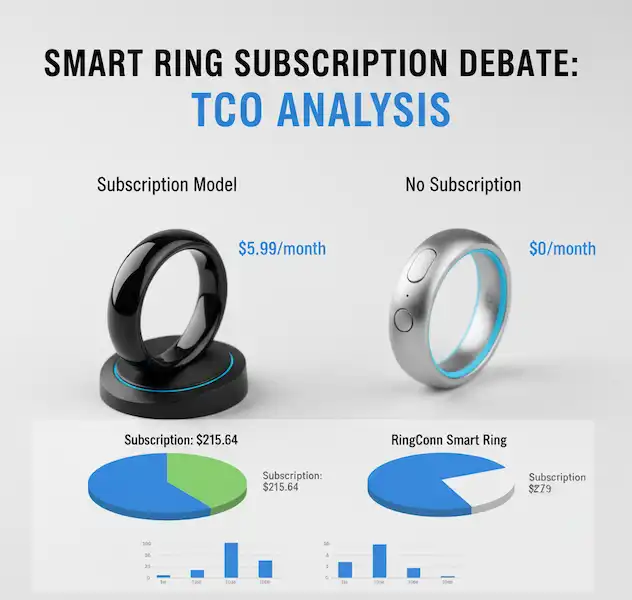
- The Catch: The $5.99/month subscription.4 Without it, the app is basically a paperweight. It’s annoying, but for the level of polish you get, many (including me) find it worth it.
- Best For: The minimalist who wants “The Story” of their health.
Ultrahuman: The Data Junkie’s Dream
If Oura is a storybook, Ultrahuman is a cockpit. There is so much data.
- Ease of Use: Moderate. It can be overwhelming at first. You have “PowerPlugs” (mini-apps inside the app) for everything from Vitamin D tracking to Circadian Rhythm.
- The Catch: No subscription! This is a massive win. You pay for the ring once, and you own your data forever.
- Personal Anecdote: I found myself checking the “Caffeine Window” feature constantly. It tells you exactly when to stop drinking coffee so it doesn’t wreck your sleep. It’s the most “proactive” app of the three.
- Best For: People who love “biohacking” and want to see every tiny heart rate spike.
RingConn: The Battery King and Simple Tracker
RingConn occupies the middle ground. The app is clean and very easy to navigate, though it lacks the “educational” feel of Oura.5
- Ease of Use: High. It’s very snappy. I never noticed any lag, and syncing is faster than the Oura Ring 3 (though the Oura 4 has caught up).
- The Catch: It feels a bit more like a “data log” than a “health coach.” It shows you what happened, but it doesn’t always tell you why or what to do about it as clearly as the others.
- Best For: Budget-conscious users who want 10-12 days of battery life and a solid, free app experience.
Head-to-Head Setup Comparison Table
| Feature | Oura Ring 4 | Ultrahuman Ring Air | RingConn Gen 2 |
| Setup Complexity | Very Low | Low | Low |
| App Aesthetic | Premium / Minimalist | High-Tech / Busy | Functional / Clean |
| Daily Sync Time | < 10 Seconds | ~15 Seconds | < 10 Seconds |
| Subscription Fee | $5.99 / Month | $0 | $0 |
| Best Feature | Readiness Score accuracy | Caffeine & Circadian tracking | Portable Charging Case |
Which One is for You?
If you want the most “human” experience and don’t mind the monthly fee, Oura is still the king. The app feels like a friend giving you advice.
If you hate subscriptions and love seeing graphs of your body’s every move, Ultrahuman is incredible. Just be prepared for a steeper learning curve in the app.
If you want the best hardware value—specifically that 10-day battery and the portable charging case—RingConn is the smartest financial move.6
For more deep dives into wearable tech, check out PCMag’s Best Smart Rings of 2025 or ZDNet’s reviews to see how these sensors perform in clinical settings.
The Handshake: How to Connect Your Smart Ring to Your Phone
Connecting a smart ring isn’t quite like pairing a pair of cheap Bluetooth headphones. It’s more of a “handshake” between the hardware and the app. If you’re staring at a spinning loading wheel, don’t panic—I’ve been there, and usually, it’s a simple fix.
Whether you’ve chosen Oura, Ultrahuman, or RingConn, the “sync” logic is pretty much the same across the board. Here is exactly how to do Smart Ring Setup and your first connection solid:
1. Wake the Ring Up
Most smart rings arrive in a “deep sleep” mode to save battery while sitting in a warehouse. To wake it up, you must place it on its charger. * Pro Tip: Make sure the charger is actually plugged into a power source (a wall outlet is better than a laptop port for that first charge). You’ll usually see a LED light pulse or blink—that’s the ring’s way of saying, “I’m awake.”
2. Enable the “Big Three” on Your Phone
Before you even open the app, go to your phone settings and ensure these three things are toggled ON:
- Bluetooth: Obviously.
- Location Services: This sounds creepy, but Android and iOS actually require location data to find “Low Energy” Bluetooth devices.
- Internet/Data: The ring needs to talk to the cloud to register your account during that first sync.
3. Use the App, Not the Settings Menu
One mistake I made early on was trying to pair the ring through my iPhone’s Bluetooth settings menu (where you pair car audio). Don’t do this. Open the specific app (Oura, Ultrahuman, or RingConn) and tap the “Add Device” or “Set Up” button. The app has the specific “keys” needed to talk to the ring. If you’ve already tried pairing it in your phone’s Bluetooth settings, “Forget” the device and start over inside the app.
4. The “Squeeze and Turn” Fix
If the app isn’t finding the ring while it’s on the charger, sometimes the sensors aren’t making perfect contact. I’ve found that giving the ring a little wiggle or a light press down into the charging cradle usually triggers the connection.
5. The Firmware Update (The Final Step)
Once the phone sees the ring, it will almost certainly ask you to perform a Firmware Update.
- Warning: Do not take the ring off the charger during this! It usually takes about 2-5 minutes. If it fails halfway through, it can “brick” the ring (make it unfunctional), so just let it sit there and finish its business.
Troubleshooting Common Connection Issues
Even with the best tech, things sometimes go sideways. If you’re staring at a “Device Not Found” screen, don’t worry—most connection issues are solved with a few simple tricks I’ve learned the hard way.
The “Universal Reset” Checklist
Before diving into brand-specific fixes, try these three “quick wins” that solve about 90% of smart ring headaches:
- Toggle the Bluetooth “Vanish”: Go into your phone’s Bluetooth settings, find your ring (it might show up as a weird string of letters like UH_123 or Oura_v4), and select “Forget This Device.” Then, restart your phone and try pairing through the app again.
- Kill the Background Apps: Sometimes a previous sync gets “stuck.” Swipe up to close the ring’s app entirely, then reopen it.
- Check for “Power Save” Interference: If your phone is on Low Power Mode or Battery Saver, it often throttles Bluetooth “Low Energy” signals. Plug your phone into a charger and try again.
Brand-Specific “Secret” Fixes
Each ring has its own little quirks when it comes to forced reconnections:
Oura Ring: The “Charger Tap”
If your Oura Ring won’t wake up, there’s a physical trick called a Hardware Reset. Place the ring on its charger, then tap the charger firmly and rapidly on a table three or four times (keep your finger on the ring so it doesn’t fly off!). It sounds like “old school” tech advice, but it actually forces the ring’s internal sensors to reboot.
Ultrahuman Ring Air: The 60-Second Rule
Ultrahuman uses Bluetooth Low Energy (BLE) to save juice. It doesn’t stay “connected” 24/7. If it won’t sync, open the app to the home screen and just leave it in the foreground for a full 60 seconds without touching anything. Often, the app just needs a moment of undisturbed airtime to “find” the ring’s pulse.
RingConn: The “Five-Time Reset”
RingConn has a unique manual restart. Place the ring in its charging case and remove/replace it 5 times consecutively within 15 seconds. Wait for the blue light on the case to blink—this signifies a successful restart of the ring’s Bluetooth module.
When to Call It a Day (and Call Support)
If you’ve tried all the above and your ring still won’t connect, check the sensors. I once spent 20 minutes trying to sync my RingConn only to realize a tiny bit of hand lotion had dried over one of the sensors, blocking the “I’m on a charger” signal. A quick wipe with a soft cloth or a Q-tip with a tiny drop of rubbing alcohol usually does the trick.
If the ring’s charging light stays solid red or doesn’t light up at all after 30 minutes on the plug, it might be a hardware issue. At that point, it’s time to reach out to their support teams—all three brands are generally great about replacements if you’re within your first year.
The “Wall of Silence”: Why Your Ring Won’t Pair
Even with a high-end wearable, you might occasionally hit a wall where the app and the ring simply refuse to acknowledge each other. After troubleshooting dozens of these for friends (and myself), I’ve found that pairing failures usually boil down to three “invisible” culprits that apply to Oura, Ultrahuman, and RingConn alike.
1. The “Ghost Connection” (Most Common)
Sometimes your phone’s Bluetooth system “claims” the ring before the app has a chance to properly shake hands with it. If you see your ring listed in your phone’s main Bluetooth settings menu before you’ve finished the setup in the app, it can cause a conflict.
- The Fix: “Forget” the device in your phone’s Bluetooth settings, toggle Bluetooth off and on, and then go straight into the app to initiate the pairing. The app needs to be the one “introducing” the two devices.
2. Battery “Critically Low” Mode
Smart rings have a failsafe: when the battery drops below a certain threshold (usually 20%), they may disable Bluetooth to prioritize keeping your core data safe.
- The Fix: If you’re at 15% battery and trying to sync, it might fail repeatedly. Pop it on the charger for 15 minutes. Most rings won’t allow a firmware update or a fresh pairing unless they are at least 50% charged.
3. The “Nearby Device” Permission Trap
On newer versions of Android (12+) and iOS, simply turning on Bluetooth isn’t enough. You have to grant the app specific permission to “Scan for Nearby Devices.”
- The Fix: If the app is spinning forever, go to Settings > Apps > [Your Ring App] > Permissions and make sure “Nearby Devices” or “Location” is set to “Always Allow.” Without this, the app is essentially wearing a blindfold and can’t see the ring right in front of it.
Frequently Asked Questions about Smart Ring Setup
Q: Can I set up these rings without a sizing kit? A: Technically yes, if you know your size, but I highly recommend the kit. Smart ring sizes are not the same as standard jewelry sizes. Oura and Ultrahuman kits are essential for a good fit.
Q: Do I need to keep Bluetooth on all day? A: No. The rings store data for several days. You can turn Bluetooth on once a day just to sync your data to the app.
Q: Is the Oura subscription really necessary? A: Yes. Without it, you only get your three basic scores without any of the underlying data or trends.
Q: Which ring has the fastest setup? A: In my experience, the RingConn Gen 2 was the fastest because of the “ready-to-go” nature of its charging case.
Additional Helpful Links
- Which device is best for heart rate monitoring – Smart Ring or Smartwatch – Which is Best Heart Rate Monitor
- What is the best smart ring for iPhone – Best Smart Ring for iPhone